Add an employee and send their invitation
Add each person once. Vesta then uses them for planning, contracts, clocking and payroll.
Step 1 of 2
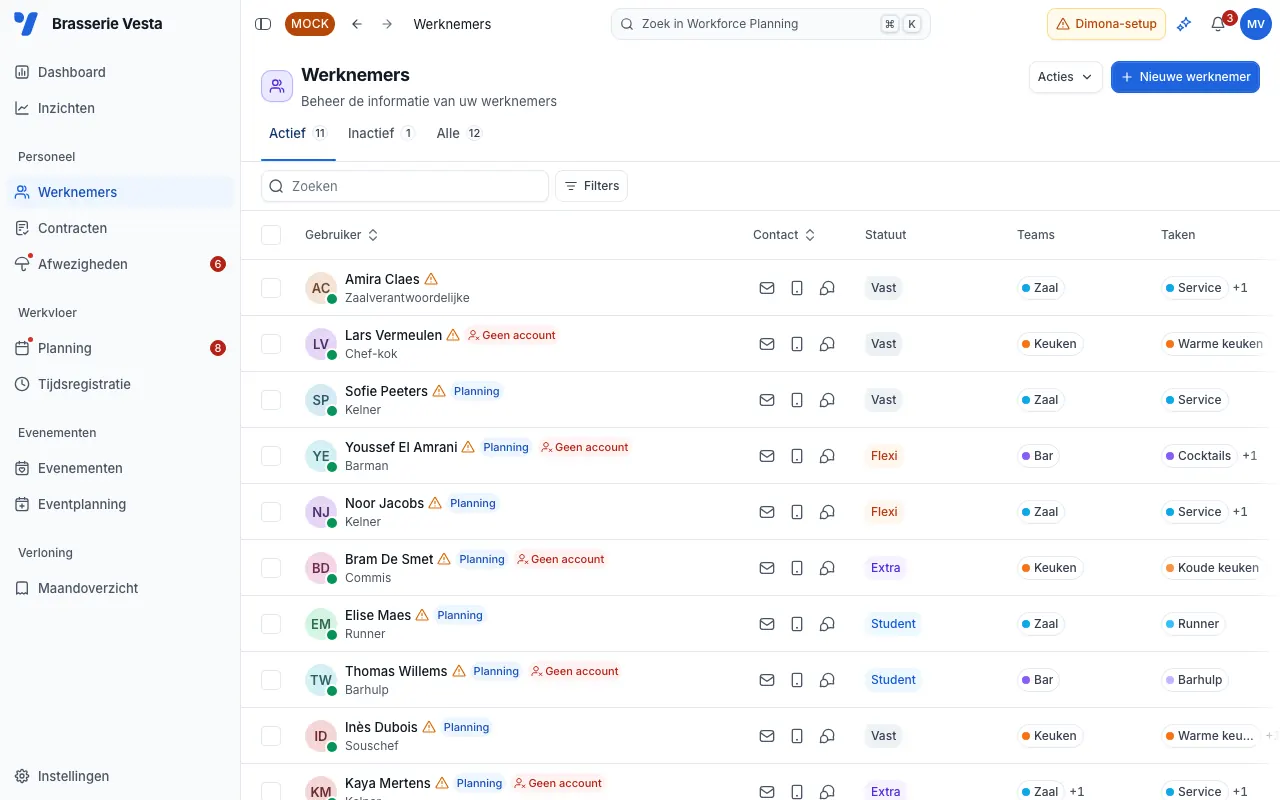
Open Employees
In the employer portal, go to Staff → Employees and choose New employee. You can also start from Add your first employee on the dashboard.
Step 2 of 2
Fill in the five steps
Work through Personal, Identity, Address, Employment and Invitation. Required fields are marked with an asterisk.
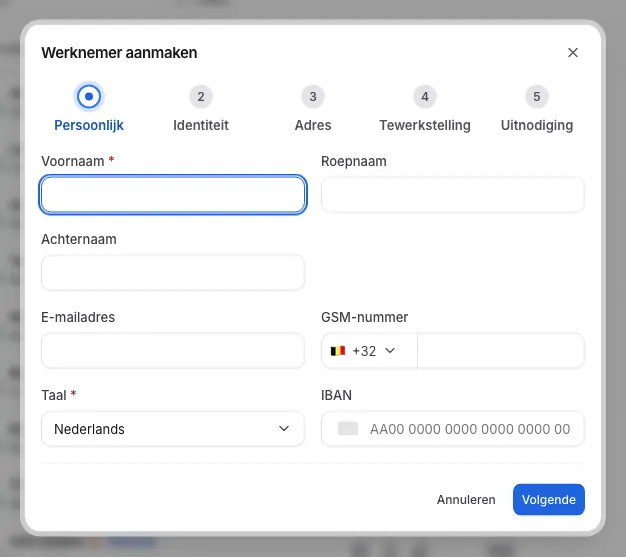
Choose Create employee on the last step. The employee appears in the list straight away.
Send the invitation
Section titled “Send the invitation”On the Invitation step, keep Send an invitation on and choose Invite via email. The employee receives a link to activate their account and open the Vesta app.
You can also send it by WhatsApp. Only tick the WhatsApp consent box when the employee has explicitly agreed to it.
Common questions
Section titled “Common questions”The employee did not receive the invitation
Open the employee and choose Resend invite. Ask them to check their spam folder and to use the newest message. Check that the email address on their profile is correct.
Can I invite several employees at once?
Yes. In the employee list, select the employees and choose Send invite. Only active employees with an email address or phone number can be invited.
Does adding an employee create a contract?
No. Add the contract next, from Administration → Contracts or from the employee’s Contracts tab. Create a contract.