Give a colleague access to the portal
Colleagues who help you run the business, such as a manager or planner, get their own portal account. Employees do not need one: they use the app.
Step 1 of 2
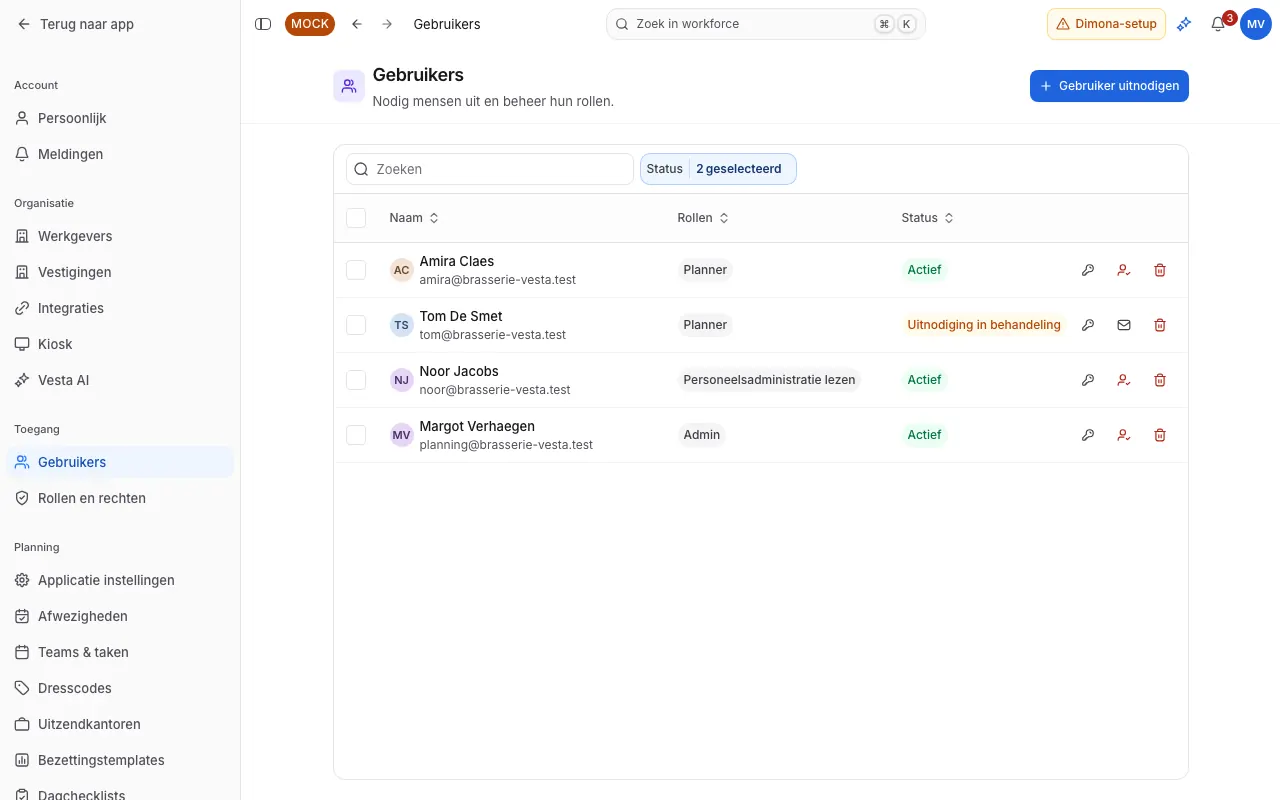
Open Users
Go to Settings → Users and choose Invite user.
Step 2 of 2
Choose their access
Enter their name and email address and choose their language. Pick one or more roles and the establishments they may access. Admin gives full access.
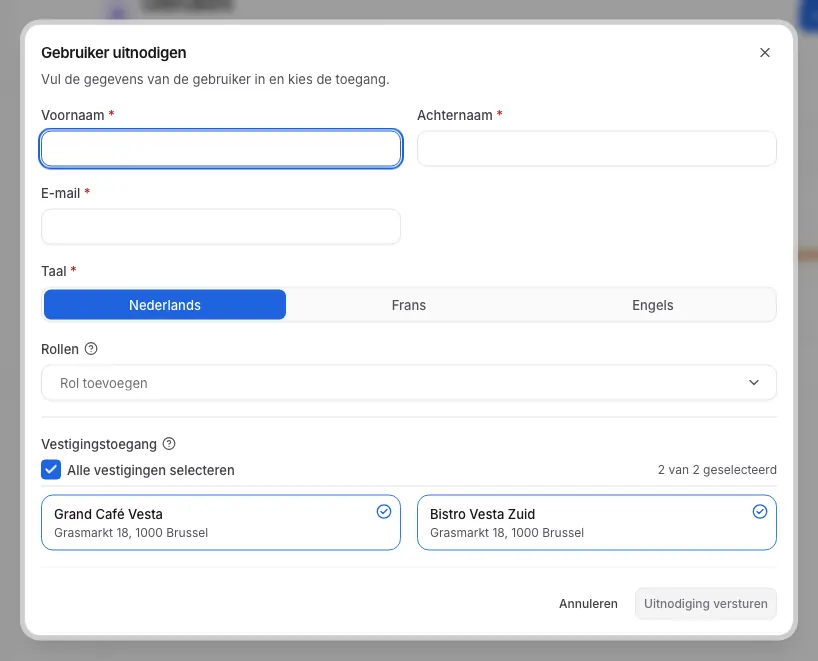
Choose Send invite. Your colleague gets an email and shows as pending until they accept.
Common questions
Section titled “Common questions”My colleague did not get the invitation
In Settings → Users, open the colleague’s actions and choose Resend invite.
How do I change or remove someone’s access?
Choose Manage access to change their roles and establishments. To stop their access, choose Deactivate. Revoke all sessions signs them out on every device.
What can each role do?
See Settings → Roles & permissions. There you see what each role allows, and you can add your own with New role.