Set up teams and tasks
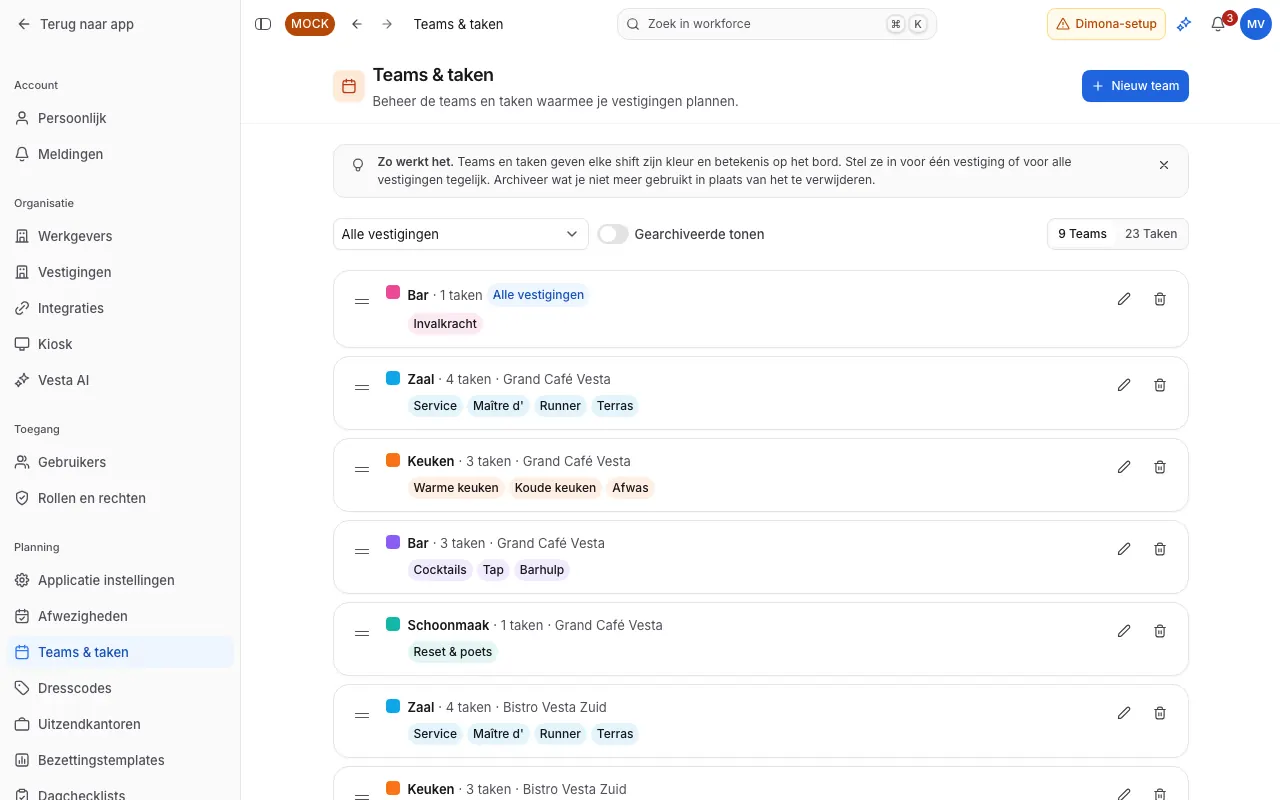
Teams and tasks give every shift a place on the planning board, such as Bar → Service or Kitchen → Prep.
Add a team
Section titled “Add a team”- Go to Settings → Teams & tasks and choose New team.
- Give the team a name and a colour. The colour shows on the planning board.
- Choose whether the team applies to one establishment or to every establishment. You cannot change this later.
Add tasks
Section titled “Add tasks”Choose New task and pick the team it belongs to. A task belongs to one team. Drag teams and tasks to change their order on the planning board.
Common questions
Section titled “Common questions”Can I remove a team I no longer use?
Archive it. Archived teams and tasks no longer appear when you plan, and you can restore them later. Past shifts keep their team.
A team is set to the wrong establishment
Where a team applies cannot be changed afterwards. Create a new team with the right setting and archive the old one.