Publish the planning
New shifts start as drafts. Your team sees them only after you publish. Changes to published shifts also stay drafts until you publish again.
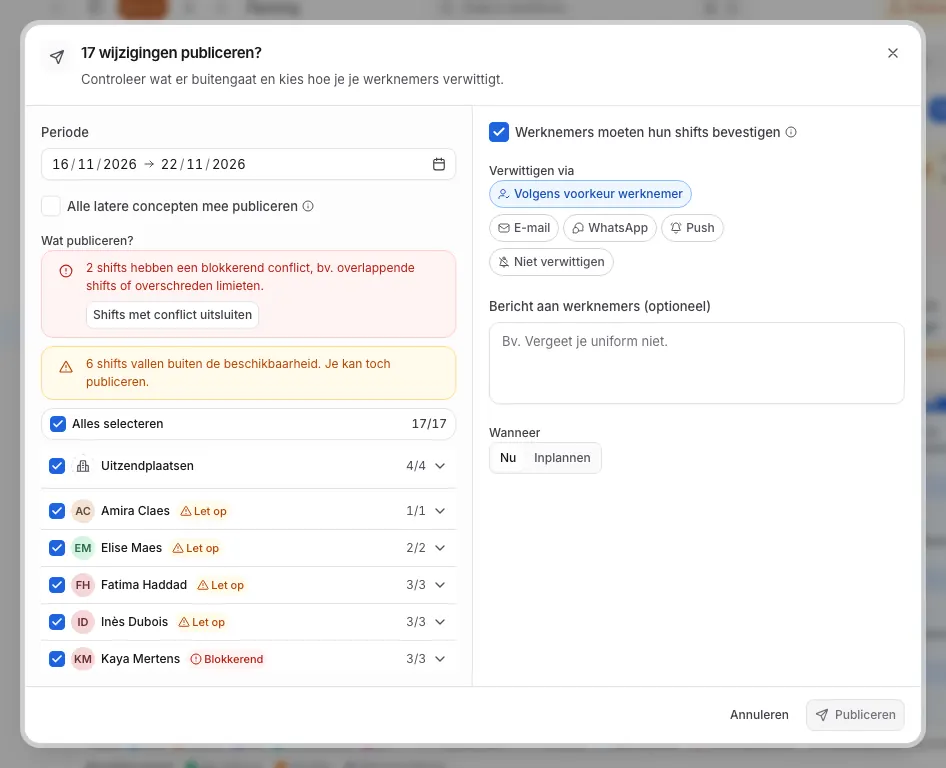
- Open Operations → Planning board and choose Publish. The button shows how many changes are waiting.
- Check What to publish?. Shifts with a Blocking conflict must be fixed first, or choose Exclude shifts with conflicts. Shifts with a Warning, such as outside availability, can still be published.
- Choose how to notify: Follow employee preference, email, WhatsApp, push, or Don’t notify. Add a message if you like, such as “Don’t forget your uniform.”
- Under When, choose Now, or Schedule to publish at a set date and time. Then confirm.
Common questions
Section titled “Common questions”The Publish button in the dialog is greyed out
At least one shift has a blocking conflict. Fix the shift, or choose Exclude shifts with conflicts to publish everything else.
Can employees confirm their shifts?
Yes. Turn on Require employees to confirm their shifts in the dialog. Employees then see the shift as To confirm in the app.
I also have drafts in the following weeks
Tick Also publish all later drafts to send them in one go.
How do I plan next week faster?
Use Duplicate on the planning board to copy shifts to another day or week, then publish the new drafts.