Approve leave and absences
Requests from the app arrive under Administration → Absences, on the To review tab.
Step 1 of 2
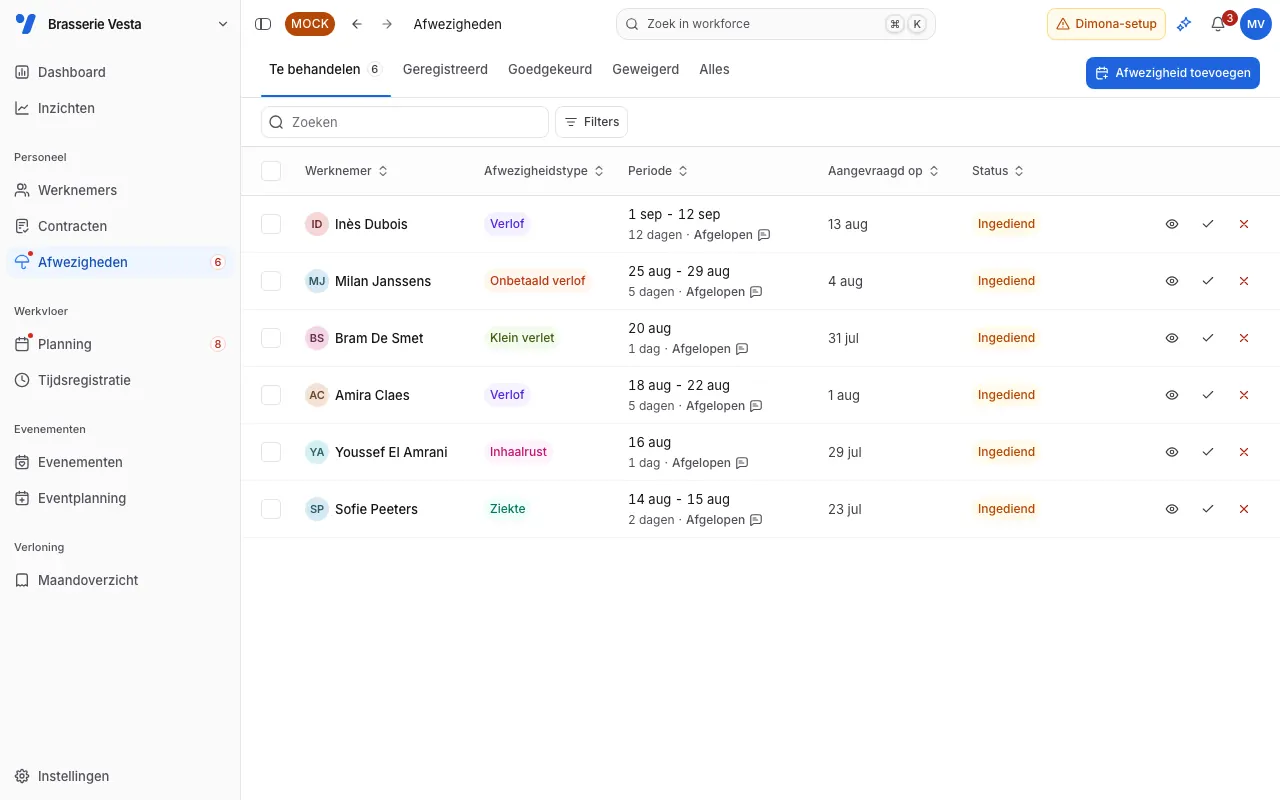
Open the request
Go to Administration → Absences. On To review, choose a request to see the requested days and the employee’s message.
Step 2 of 2
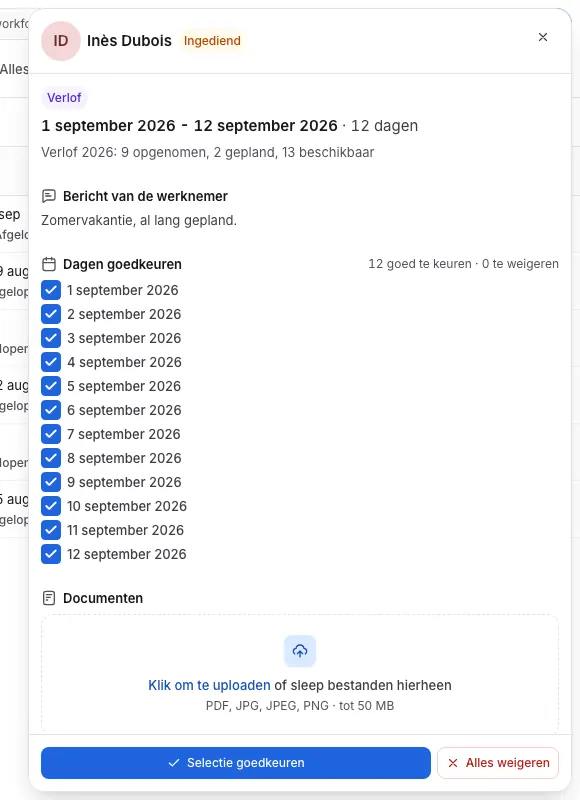
Approve the days
Under Days to approve, keep the days you accept ticked. Choose Approve selected, or Reject all.
Approved days show on the planning board.
Record an absence yourself
Section titled “Record an absence yourself”Choose Add absence, pick the employee, the type and the days. Use it for sick leave or leave agreed in person.
Common questions
Section titled “Common questions”Can I approve only some of the days?
Yes. Untick the days you refuse and choose Approve selected. The other days are rejected.
I approved leave by mistake
Open the absence and choose Cancel absence. It stays in the history and is removed from the planning and the balance.
Which absences can employees request themselves?
You decide. Under Settings → Absences, choose which absence types employees request themselves and which rules apply, such as how far in advance.