Handle shift swaps, takeovers and open shifts
On the planning board, choose Requests to see everything that waits for you, grouped by day.
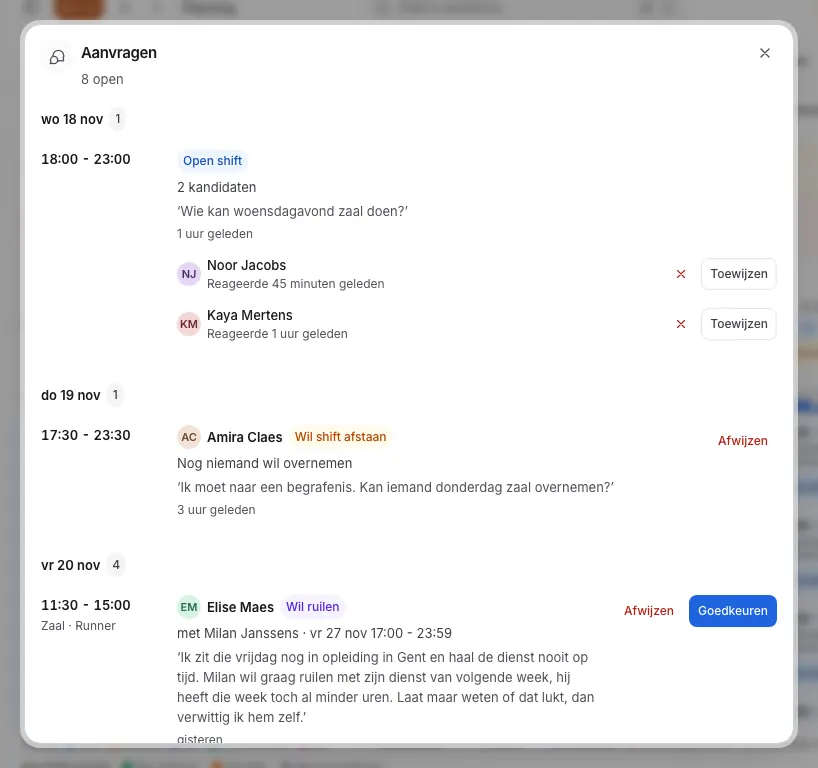
- Open shift: see who signed up and choose Assign next to the right person.
- Wants to give up their shift: an employee offers their shift to colleagues. Choose Approve or Reject.
- Wants to swap: two employees agreed to swap. Choose Approve or Reject.
When nothing is left, the panel says You’re all caught up.
Assign, or Approve for a takeover, on a published shift puts the person on it as a draft change, just like an edit on the board. The open shift closes right away, but the employee only sees the shift once you publish the planning. With a takeover, the other colleagues who signed up hear right away that they were not picked.
Common questions
Section titled “Common questions”Who gets an open shift?
That depends on how the open shift was set up: the first person to join, or you. With planner review, you choose with Assign.
Can I stop employees from swapping?
Yes. Under Settings, in the planning settings, turn off Employee shift swaps. Employees then see that shift swaps aren’t available.