Check, correct and approve worked hours
Every clock-in from the kiosk or the app lands in Operations → Time entries. Check them before you close the month for payroll.
Step 1 of 3
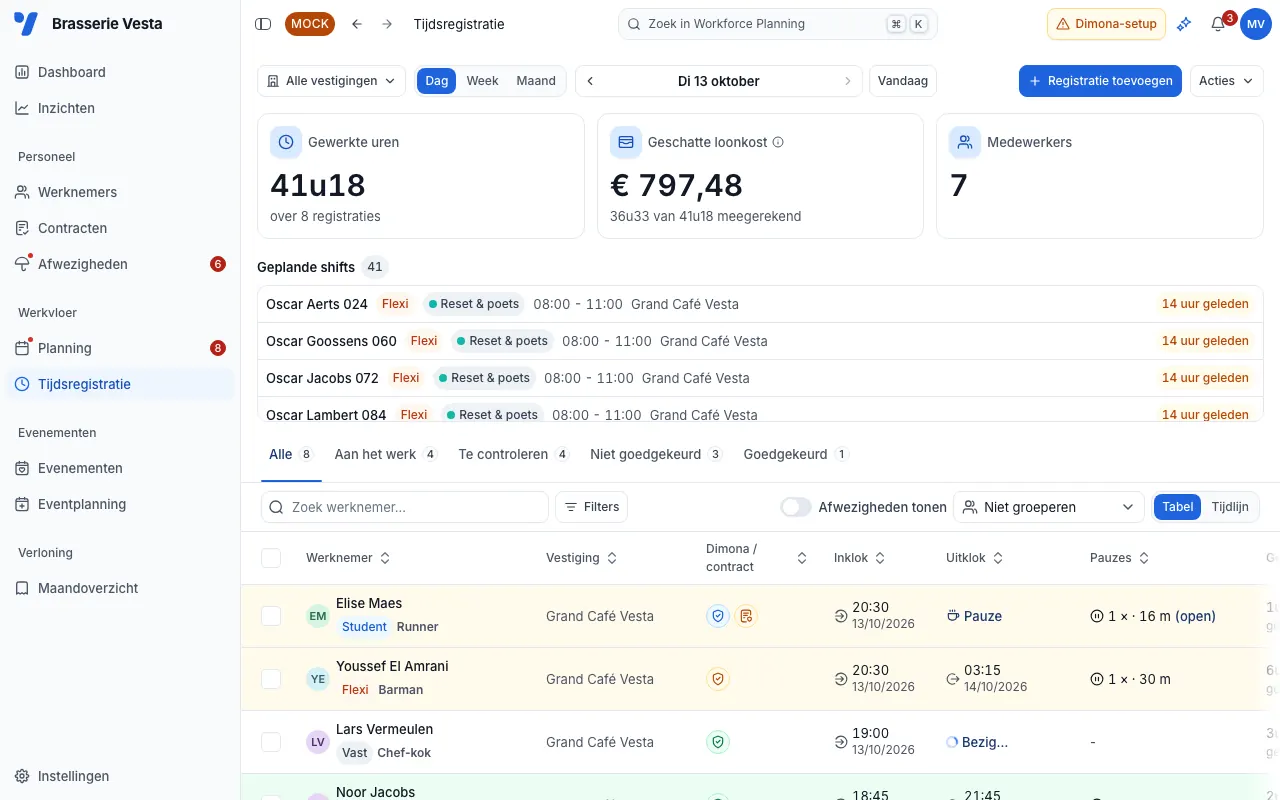
Find what needs attention
Open Operations → Time entries. Use the tabs and filters to show the registrations that still need a check, for one day, week or month.
Step 2 of 3
Compare with the planning
Choose a registration. Planned vs. effective shows the planned shift next to the clocked times and breaks.
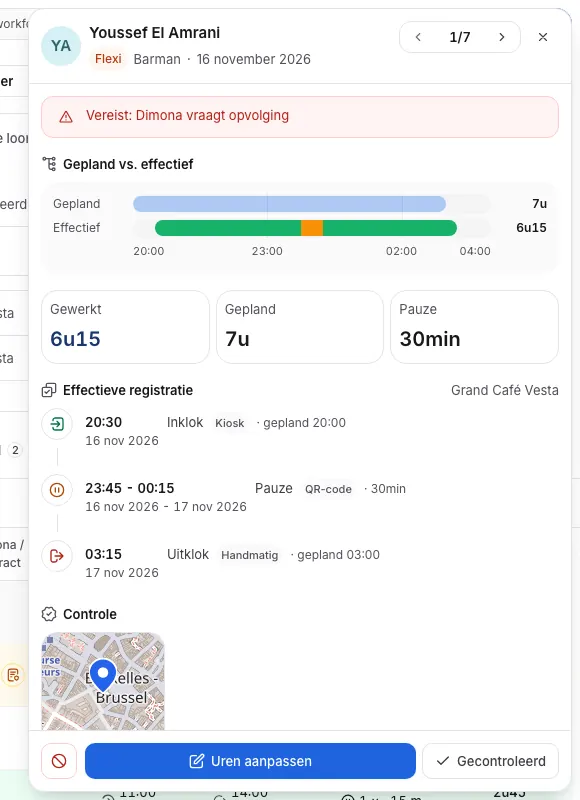
Correct with Adjust hours, then choose Checked.
Step 3 of 3
Add a missing registration
Forgot to clock in? Choose Create time entry. Pick the employee and establishment, then the start and end. Leave the end time empty for someone who is still working.
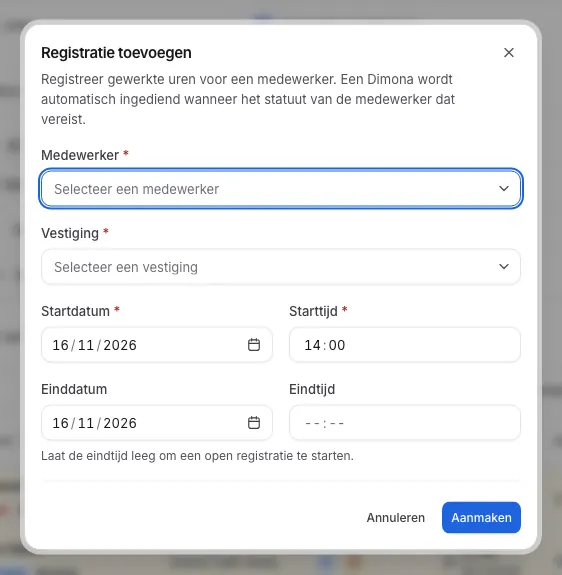
Vesta shows what will be created, such as a day contract or Dimona IN, before you save.
Approve hours
Section titled “Approve hours”Select the registrations in the list and choose Approve. Changed your mind? Choose Remove approval.
Common questions
Section titled “Common questions”An employee forgot to clock out
Open their registration, choose Adjust hours and enter the correct end time.
An employee clocked out by mistake
Open the registration and choose Undo clock-out. The registration is open again.
A registration should not exist
Open it and choose Cancel registration.
Can Vesta check the hours for me?
Filter or select the registrations and choose Review with AI. Vesta checks them and proposes changes; you confirm or discard each one.