Review your team’s schedule
Check scheduled shifts, then compare them with recorded work.
Step 1 of 2
Review the right week
Open Operations → Planning. Check the dates above the board, then find the employee’s row and review the shift times.
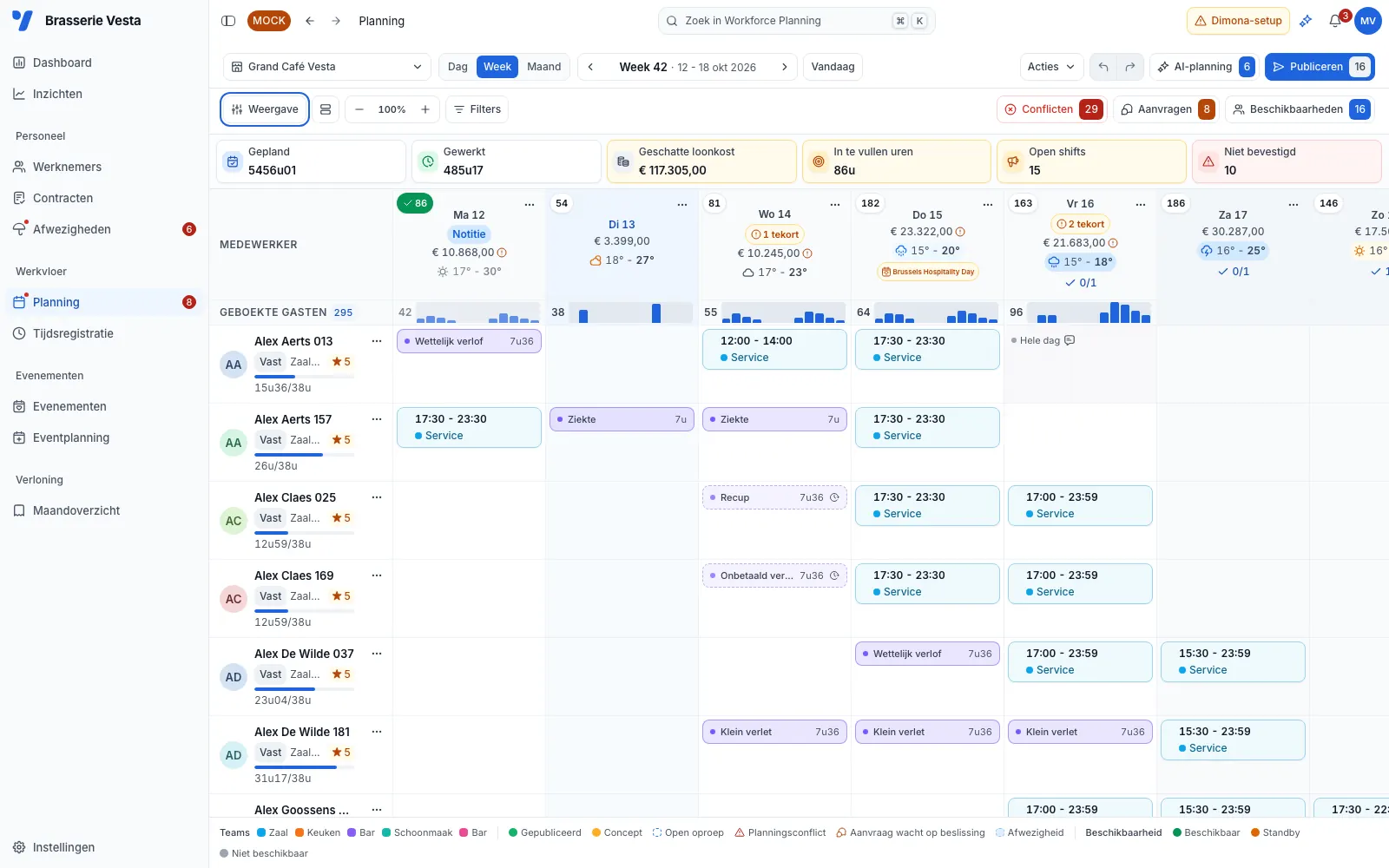
You can see who is scheduled and when for the selected week.
Step 2 of 2
Follow up on worked time
After the working day, open time registration to compare recorded work with the schedule.
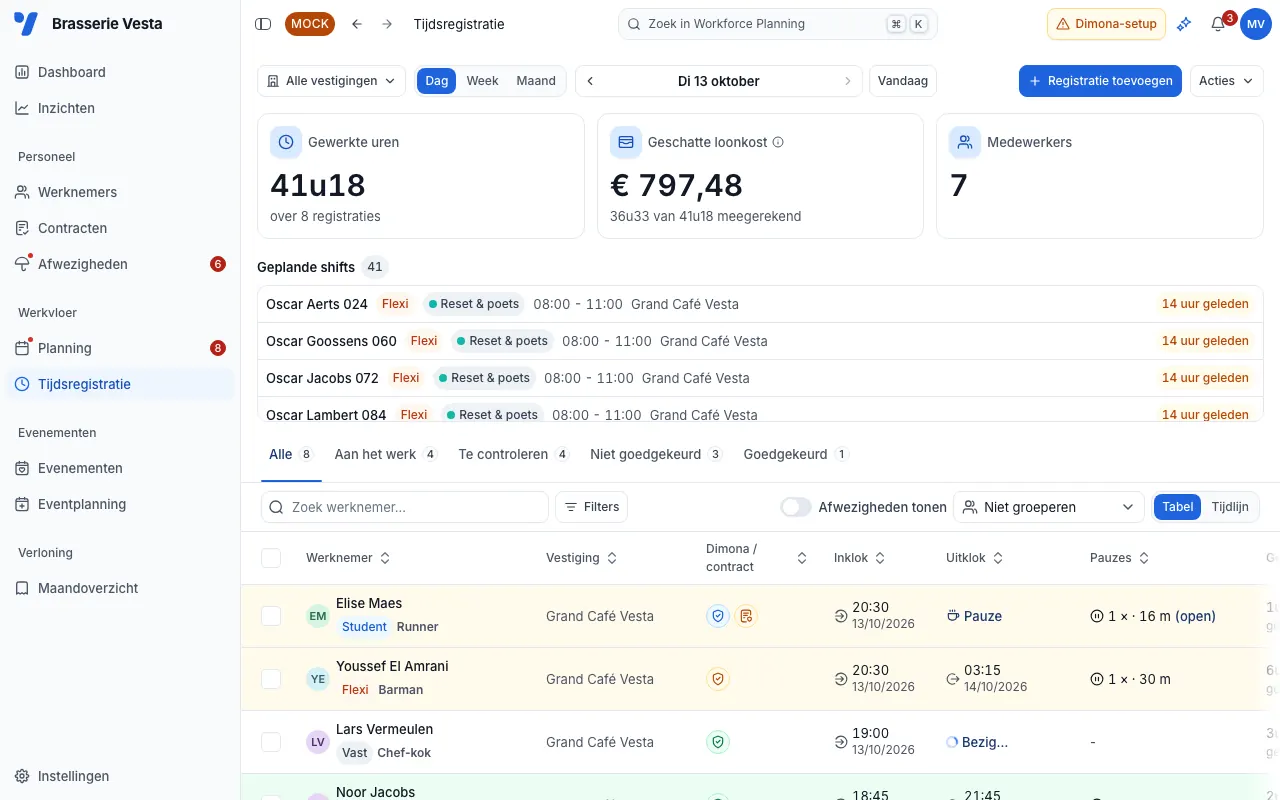
You can investigate differences before payroll review.
Students, flexi-jobbers and extras can set work preferences: how many days or hours they want to work per week. In the week view, such an employee shows a second line under their hours, like 3/2 days or 16/20 hours: planned this week, then preferred. It turns to a warning when planned is above preferred. When you assign a shift, each candidate shows 4 of 2 days or 22 of 20 hours including that shift, with a warning when it goes past the preference. It never blocks the shift and is separate from availability. Edit it on the employee’s Planning tab under Work preferences. Automatic planning respects it and gives extra work to an equally suited colleague first.
Next: worked hours.